
SUPPORT HUB
ChamberSync Support
Get the help you need to keep moving.
Have a question, need help with setup, or want to make better use of ChamberSync? Start here.
Set Up ChamberSync
Get your chamber ready to use ChamberSync. Complete setup information you need to get started.
Watch How-To Videos
Find step-by-step guidance in our YouTube playlist. Follow along as you learn how to use ChamberSync.
Connect with Rosa
Need help getting started or figuring out your next step? Connect with Rosa.
Join Our Community
Join the ChamberSync Command Center to stay connected and find help as you put ChamberSync to work.
Email Support
Send us your question at [email protected]. Include your chamber’s name, what you’re trying to do, and any screenshots that help explain the issue.
Get Live Help
Bring your questions to an upcoming ChamberSync support session. Check the calendar for dates, meeting links, and options to add sessions to your calendar.
DOMAIN SETUP
Connect Your Domain to ChamberSync
To make ChamberSync work with your domain, you'll need to add CNAME records to your (Domain Name Services) DNS. This allows your email, links, and platform access to run smoothly—without confusing redirects or tech headaches.
1. Log into your domain host
This is wherever you manage your DNS—GoDaddy, Google Domains, Namecheap, Cloudflare, etc.
2. Go to your DNS Settings
Look for a section called “DNS,” “Manage DNS,” or “Zone Editor.” If you're using Cloudflare, make sure the orange cloud proxy is OFF for all records.
3. Save your changes
4. Last Step: Let Us Know
Once it’s done, email [email protected] so we can verify and activate your ChamberSync setup.
Need Help?
We’re happy to guide you through it—just reach out. If you’d prefer we handle it for you, send us temporary access or a screenshot of your DNS.
Set up your domain by adding the following records
RECORD
HOST
VALUE
CNAME
sync
sites.ludicrous.cloud
CNAME
email.sync
mailgun.org
MX
sync
mxa.mailgun.org
MX
sync
mxb.mailgun.org
TXT
sync
v=spf1 include:spf.leadconnectorhq.com include:mailgun.org ~all
TXT
krs._domainkey.sync
k=rsa; p=MIGfMA0GCSqGSIb3DQEBAQUAA4GNADCBiQKBgQC6jrtnMYBN/0J5A//cuolth4lQZf1K0MYIzTmyi8pcG940EumSLbUfw6fdh+Ha6uzuxyJhMIl+guU0zBIB5eOpc+nnP4Y7xRJYcLEF1mbXgzzXlVlcm9OtG/hifOMueg1c0TG7Msbvbl+hOG9lsXyJaTRvfx1XCtIIo8vl39lWgQIDAQAB
Account Setup
Account Verification
Look for an email from ChamberSync. The first step in getting started with ChamberSync is to reply to the email by clicking the link to verify your email address and create your personal log in to your ChamberSync account. Each team member should have their own account, so proceed as if this is your own personal account.
Password Reset & Recovery
If you did not receive an email from ChamberSync, go to https://app.chambersync.com and click "Forgot Password". Then check your inbox for a password reset link. You might need to check your junk or spam folder. If you still don't receive this email, don't worry -- send us a note and we will take care of it for you: [email protected].
Connect Your Email & Calendar
Now it's time to connect your email and calendar. This works with Microsoft and Google products seamlessly.
From the control panel, click Settings, then My Profile. On the right side of the screen, scroll down to Email.
Setup your Email (2-way sync) by clicking either Gmail or Outlook and follow the prompts to authorize the connection.
Then scroll down to Calendar Settings and click + Add New. Follow the prompts to authorize Enjoin to talk to your calendar.
Scroll down to User Availability and set your Available Hours. Enjoin will only offer your availability within these times.
Once you've completed this step, click here to send us an email to confirm your integration.
Once you've completed this step, click here to send us an email to confirm your integration.
Download the App
Download our Lead Connector app: click here to find it for iPhone, or click here to find it for Android.
Invite Other Team Members to Your Account
From the main control panel on the bottom left, click Settings. Then click My Staff. Then click Add User. Add their first name, last name and email address, then Next. On the next screen, click Save. The added staff members will receive an email to set up their password and log in.
ENJOIN
Add Enjoin to Your Website
When you are ready, replace the JOIN links on your website with your Enjoin link: https://sync.yourchamber.org/join
How Enjoin Works
Watch the video below to see how Enjoin captures leads, and gives you a leads board on which to manage all of your leads.
Frequently Asked Questions
What is ChamberSync?
ChamberSync software combines powerful automations, Enjoin, Onboard and Pulse, into a turnkey service. Created by Kyle Sexton of ChamberThink Strategies, ChamberSync is designed to help chambers of commerce enhance their membership marketing efforts. The upgrade from Enjoin to ChamberSync reflects our commitment to providing you with cutting-edge tools and resources to drive success—ensuring that you have everything you need to engage members and grow your chamber effectively.

What is Enjoin
Enjoin is a powerful lead management software designed to capture leads and seamlessly schedule them into your calendar for appointments. It includes a unique personality test feature that saves user responses to eight questions and sends instant lead alerts to clients.

Who is Enjoin designed for?
Enjoin is primarily aimed at Chamber staff who need an efficient and effective way to manage and schedule leads.
What are the key features of Enjoin?
Instant Lead Alerts: Enjoin sends instant lead alerts to your clients, ensuring timely follow-up while the prospect is still on your website
Personality Test: The software includes a personality test that captures responses to eight questions, providing valuable insights into your leads.
Scheduling: Enjoin auto-schedules prospects into your membership staff calendar for appointments
How does the personality test work?
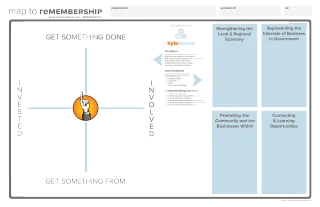
The personality test in Enjoin consists of eight questions and is based on the Map to Remembership, the strategic visual framework that help chamber professionals understand that they are running four different Chambers. User responses are saved and analyzed to help you better understand your leads. This information can be critical in customizing your approach and increasing the chances of successful engagements.
How do I add a staff member to Enjoin?
Log in to your account
Go to the "Start Here!" tab on the left side control panel
Scroll down and click "Quickly Add Staff"
Enter the emails of staff members
They will receive an email invitation to set up their profile in your account

How do I download the app?
Visit the App Store (iOS) or Google Play Store (Android) on your mobile device.
Search for "Lead Connector"
Click on the Download or Install button
Once downloaded, open the app and log in with your credentials

How do I view my leads in Enjoin?
To view your leads, log in to your account
Navigate to the "Opportunities" section from the main dashboard
Here, you will see a list of all captured leads along with their details and scheduled appointments
Does Enjoin Integrate with Chamber Nation, ChamberMaster, GrowthZone, Accrisoft, Personify, Atlas, MemberClicks, MC Trade, and CC Assist?
Your member management system helps you manage members, but ChamberSync helps you get more members. To do this, ChamberSync is built on the world's #1 marketing automation platform.
ChamberSync works with any website in every platform. In a world where back-end integration can lead to complexity and security vulnerabilities, ChamberSync stands out as a beacon of simplicity and reliability. By operating as a standalone solution, you experience fewer compatibility issues and enjoy a seamless, user-friendly interface crafted specifically to meet your membership growth needs. With ChamberSync, you can concentrate on what truly matters—your new members—without the distractions or complications that often accompany integrated systems.
Who can I contact for support?
For any issues or questions regarding Enjoin, you can contact our support team at [email protected] or call us at 888-313-1369. You can also use the calendar below to schedule an appointment. We're here to help!

Join Our ChamberSync Success Calls

© 2008-2026 ChamberThink Strategies LLC. All rights reserved.